

Overview
Mixpanel Agentic Automations are sub-agents of Mixpanel Agent that you configure once to do recurring analysis work for you, and deliver the result where you already work.Types of Agentic Automations
- KPI Monitoring — Watches a metric you own and ships a personalized digest on the cadence you choose. See below for details.
KPI Monitoring
A KPI Monitor watches a metric you care about and ships a personalized digest on the cadence you choose. Each digest summarizes what changed in the last window, calls out shifts the agent considers notable, and gives you a way to give feedback so we can improve what the agent surfaces over time.Create a KPI Monitor
You can also create and manage Automations by asking Mixpanel Agent — see below.1
Launch the Automation creation workflow
Click ’+ Create New’ button in your side navigation bar. At the bottom of the ‘Analysis’ section, click the Automation button.\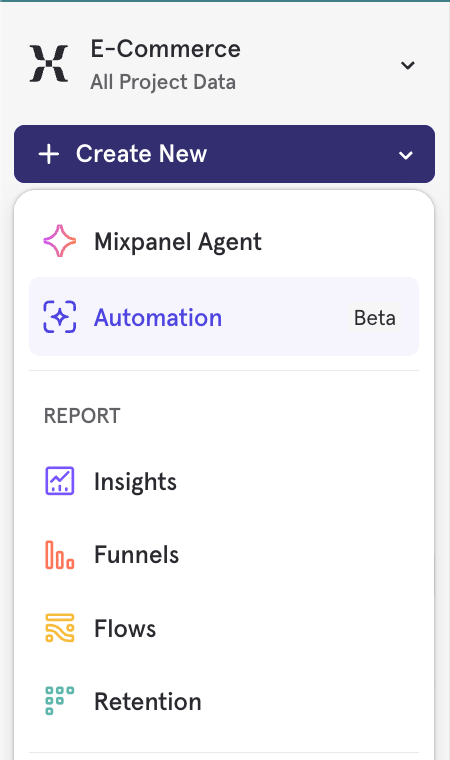
Don’t see this button? Your organization may not have Mixpanel AI enabled. See the Mixpanel Agent FAQ for how to enable Mixpanel AI features in settings.
2
Name the Automation
Pick the automation type and give it a name. The Automation is created as a Draft right away, before you configure anything, and won’t run until you activate it. You’ll set up everything else on the Automation’s Configuration tab.
3
Set the trigger
Digests can be delivered daily, weekly, or monthly, at a time of day you choose. Daily schedules can run on specific weekdays, weekly schedules on a single weekday, and monthly schedules on either a day of the month or an nth weekday. You can also repeat every few weeks or months instead of every one. Weekly is a balanced default cadence for most teams.Changing the cadence resets the analysis window to the new cadence’s default.
4
Configure the metric analysis
Metric. Choose any Insights-style event metric — sums, counts, or unique counts over an event you’ve already instrumented. The agent will use the metric’s existing definition as the source of truth for what it watches.Breakdown (optional). Pick one property to break the metric down by, and each digest ranks its segments alongside the overall number. See Break a KPI down by a property.Instructions. Use the Instructions field to tell the agent how to interpret results and what to call out. For example: “Flag anything that deviates more than 2 standard deviations from the 30-day average” or “Focus on week-over-week change, not absolute values.”Instructions shape the digest’s commentary, not the underlying query. The agent runs a single, fixed query based on the metric you selected. It cannot run additional queries, pull in other metrics, or take actions. Instructions guide how the agent frames its summary: which comparisons to emphasize, what thresholds matter to you, and what language to use when describing shifts.Analysis window. Set how much history each digest analyzes. The options available depend on the cadence you picked, and each cadence has a sensible default.
5
Set up delivery
Digests can land in Slack, email, or both — you can add multiple email recipients and multiple Slack channels at the same time. Slack delivery requires the Slack integration to be configured for your project.Delivery is optional. With no channel configured, results only appear on the Automation’s overview page.
6
Save and activate
Save your configuration, then flip the Activate toggle to start the schedule — your first digest arrives at the next cadence boundary. Activation requires a name, a valid metric, and a cadence, with no unsaved changes. You can pause, edit, or delete the Automation at any time.
Break a KPI down by a property
If you track a KPI across many segments — regions, fulfillment centers, products, accounts — you don’t need one Automation per segment. Pick a single property to break the metric down by, and every digest ranks that property’s segments for you. Each digest leads with the overall metric, then surfaces the top 5 and bottom 5 performing segments. So a daily monitor on Orders Completed broken down byfulfillment_center_id tells you both how order volume is doing overall and which centers are pulling ahead or falling behind — even on a day when the total looks unremarkable.
Breakdowns work on any cadence, and the digest is delivered wherever your other KPI digests land.
Set the breakdown in the breakdown field, not the Instructions field. Asking for “break down by location” in your instructions won’t create a breakdown — and it’s ambiguous which property you meant. Choosing the property explicitly guarantees the digest ranks the one you intended.
What’s in a digest
- A short summary of what the metric did in the last window vs. baseline.
- Any shifts the agent considers notable, with the agent’s reasoning.
- If you set a breakdown, the top 5 and bottom 5 performing segments for that property.
Manage Automations with Mixpanel Agent
You can set up and manage Automations by asking Mixpanel Agent in plain language, from anywhere the Agent is available. Ask it to:- List your Automations. This returns the Automations you own, not your teammates’.
- Inspect one — its settings, schedule, analysis window, breakdown, and delivery. From an Automation’s details page, the Agent picks up which one you mean from the page you have open.
- Create a new one — metric, breakdown, cadence, analysis window, instructions, and delivery.
- Update one — rename it, change the cadence, adjust the analysis window, add or change the breakdown, revise instructions, or change delivery.
- Activate or pause it.
- Check run history — when it last ran, and whether the run succeeded, failed, or partially completed. Both scheduled and manual runs are included.
- Delete it.
Every change the Agent makes requires your approval. Creating, updating, activating, pausing, and deleting each surface an approval step showing exactly what will change, and nothing is applied until you approve it.Automations the Agent creates land as Draft — the Agent never activates one as part of creating it. Activating is a separate action with its own approval.Edits are scoped to what you asked for: approving a rename changes only the name, and leaves the metric, cadence, window, and delivery untouched. The one exception is delivery, which is replaced as a set rather than merged — asking to add a recipient replaces the existing delivery configuration.
Limits
- Automations per user per project. Free: 5, Growth: 10, Enterprise: 20.
- Metric types. KPI Monitors today support Insights-style event metrics, as well as funnel, retention, saved metrics, and formulas
- Delivery channels. Slack and email are available today
- Cadence. Daily, weekly, or monthly.
- Analysis window. The options available depend on the cadence you picked.
- Breakdowns. One property per Automation. Digests show the top 5 and bottom 5 segments; the number of segments isn’t configurable yet.
- Time zone. Schedules run in the project’s time zone. There’s no per-user local delivery time yet.
Have feedback or want to help shape what’s next for Agentic Automations? Reach out to your account manager and ask to be connected with our product team.